Overview
The Requests page in the Vendor Portal allows vendors to review, manage, and respond to assignment requests submitted by clients. From this page, users can view pending actions, search for specific requests, and track previously processed requests.
Requests
Navigate to the Requests tab from the Vendor Portal dashboard. The page is divided into two main sections:
- Pending Requests
- Past Requests

Searching and Filtering Requests
Users can search for specific requests or narrow results using available filters.
Requests can be filtered by:
- Assignment Terms
- Service Types
- Locations
- Status

These filters help users quickly locate assignments that require action or review.
Pending Requests
The Pending Requests section displays all requests that currently require vendor action.
Each request includes the following details:
- Request # – Unique request identification number
- Start Date – Assignment start date
- End Date – Assignment end date
- Assignment Term – Emergency or Long Term
- Service Type – Service category requested
- Position – Assigned role or position
- Location Name – Assignment location
- Rate – Agreed assignment rate
- Status – Current request status
- Next Action/Step – Required user action

Request Status Types
The Status column identifies the current stage of the request.
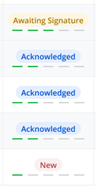
- New – The request has been submitted by the client and has not yet been reviewed.
- Acknowledged - The vendor has reviewed and acknowledged receipt of the request.
- Awaiting Signature - The request has been accepted and is waiting for required documentation to be signed.
Next Steps
The Next Action/Step column displays the action required to continue processing the request.
- Acknowledge – Confirm receipt and review of the request
- Accept or Reject – Respond to the assignment request
- Sign – Review and sign required documents to finalize the assignment
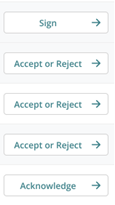
These actions are clickable and will open the appropriate workflow.
Accepting Requests
When a vendor selects Accept, the client is notified that the assignment request has been approved.
Once accepted:
- The request status updates accordingly
- The vendor must review the Business Operations Summary
- The vendor must electronically sign the document
- After signing is complete, the assignment record is officially created (Note: An assignment is not fully created until required documents are signed)

Rejecting Requests
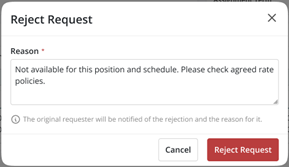
If a vendor is unable to accept an assignment request, they may select Reject.
When rejecting a request:
- A rejection reason is required (The entered reason is saved with the request for future reference and inquiry purposes)
Providing accurate rejection details helps maintain clear communication between vendors and clients.
Past Requests
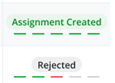
The Past Requests section displays requests that have already been processed.
Past Request Types
Previously processed requests may include:
- Assignment Created – Request was accepted and finalized
- Rejected – Request was declined by the vendor
Was this article helpful?
That’s Great!
Thank you for your feedback
Sorry! We couldn't be helpful
Thank you for your feedback
Feedback sent
We appreciate your effort and will try to fix the article