Creating an Assignment
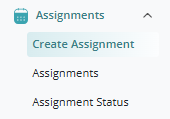
To create a new assignment, log in to the Client Portal and navigate to the Assignments menu on the left-hand navigation panel. Select Create Assignment.
Contact Details
Enter the following required information:
- Requested By (First & Last Name)
- Email Address
Once completed, click Next.
Location
Click the Select Location field and either:
- Type the desired store number, or scroll through the available locations
- If the location does not exist, select Add New Location and complete the required location information.
After selecting a location, indicate whether any dangerous or environmental conditions are present and click Next.
Security Provider Selection
Complete the assignment details by selecting the following:
- Assignment Terms
- Security Provider
- Reason
- Service Type
- Assignment Position
- Security Provider Rate
- Attendance Verification
- Interval check in
- Assignment Pin
- A PIN number will be automatically generated for the assignment. Verify that a green check mark appears next to the PIN field.
When finished, click Next.
Schedule
Select the Assignment Start Date.
Choose whether the assignment is:
- Ongoing, or scheduled to end on a specific date
If the assignment is not ongoing, select a Termination Date.
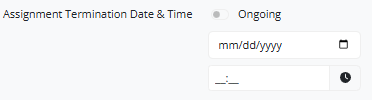
Enter:
- Schedule Start Time
- Schedule End Time
If the assignment requires a 24-hour shift, select the 24 Hr Shift checkbox.
Days and Hours
Select the applicable days of the week using the checkboxes.
If the schedule varies by day:
- Enable the toggle for the applicable day.
- Enter the appropriate work hours.
For rotating schedules:
- Select Add Week.
- Enter the schedule for the additional week(s).
Click Next.
Officer Options
Select the applicable Officer Duties or use the toggle to select all available duties.
Continue completing the remaining assignment information, including:
- Vehicle Requirements
- Facilities
- Environment
- Alcohol Consumption on Premises
- Site Instructions (Optional)
- Notes (Optional)
After all required information has been completed, click Create Assignment.
The assignment will be submitted and created successfully.
Was this article helpful?
That’s Great!
Thank you for your feedback
Sorry! We couldn't be helpful
Thank you for your feedback
Feedback sent
We appreciate your effort and will try to fix the article