
The Securitime Client Portal provides quick access to the performance of security guard vendors servicing your portfolio. This guide will provide you with basic navigation instructions of the platform and where to find frequently used functions.
Login
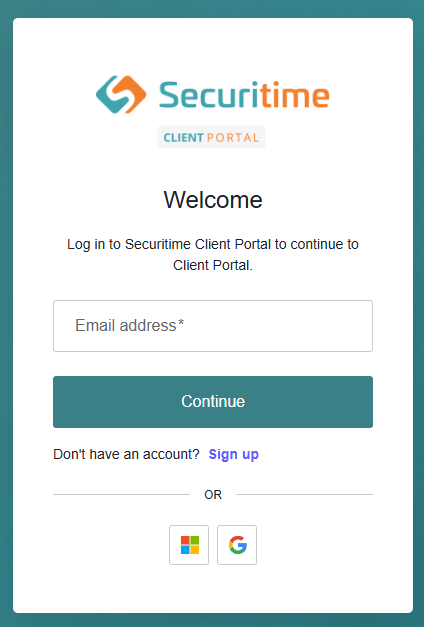
Navigate to clientportal.securitime.com. Enter your email and password to sign in.
If you don’t already have an account, select Sign Up at the bottom. Fill in the required fields, then create your password.
Dashboard
The Client Portal Dashboard will provide information regarding vendor performance, reported incidents and real-
Time status of posts within your area of responsibility.
Dashboard Filters – Customize the data displayed across all visualizations. Year to date views are not affected by date filters.
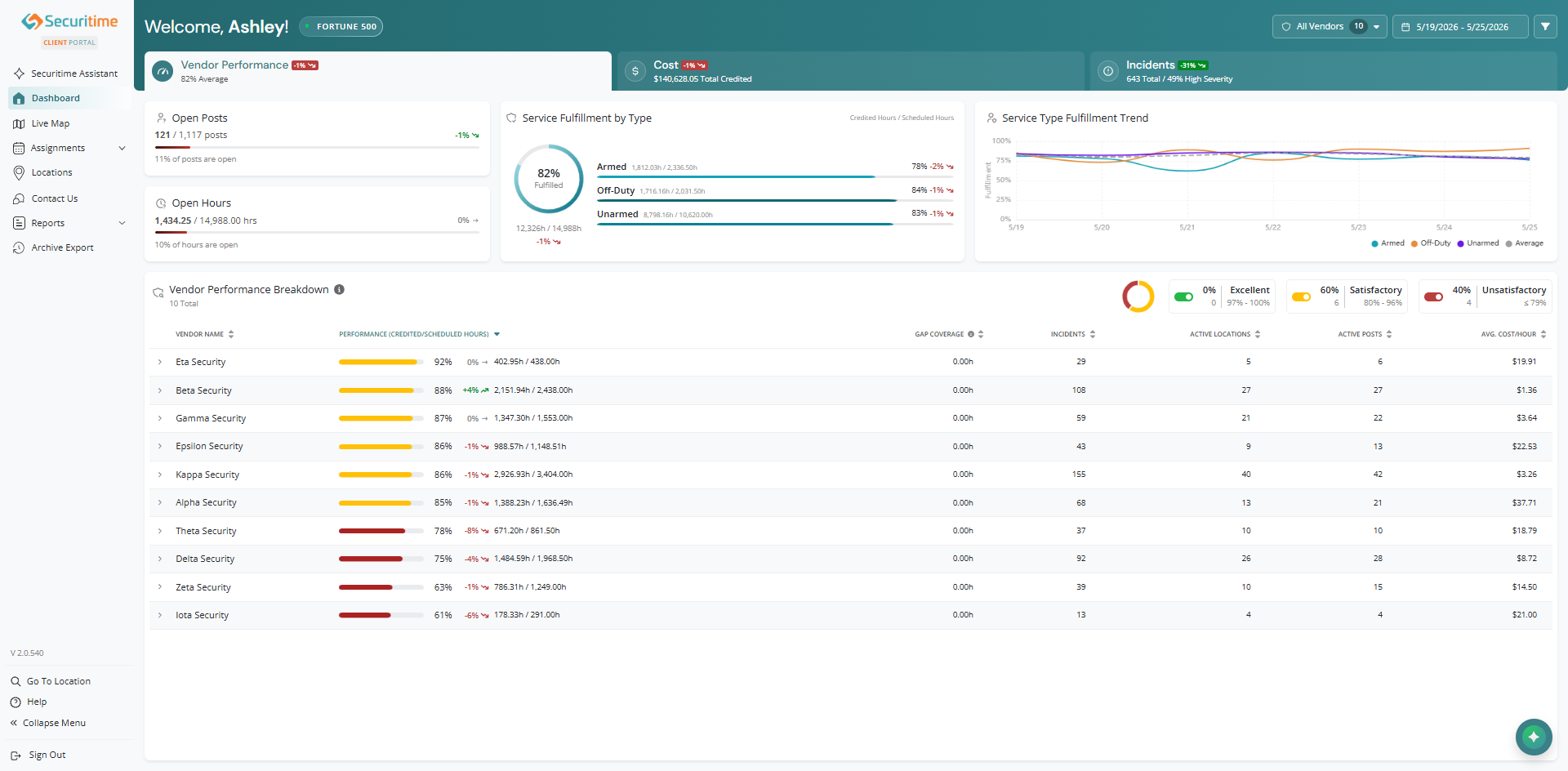
Open Posts – How many posts remain unfilled.
Open Hours – Total number of scheduled hours that have not been fulfilled.
Service Fulfillment by Type – Track service type performance does over time.
Service Type Fulfillment Trend – Track service trend over time.
Vendor Performance Score – Evaluate vendor performance across key metrics. Interactive toggles to focus on specific performance levels (Excellent (Green 97% - 100%) Satisfactory (Yellow 80% - 96%) Unsatisfactory (Red 79% or less)). Past 12 months not affected by the dashboard filter.
Incidents
The Incidents Dashboard tab provides visibility into incident activity across locations and service areas.
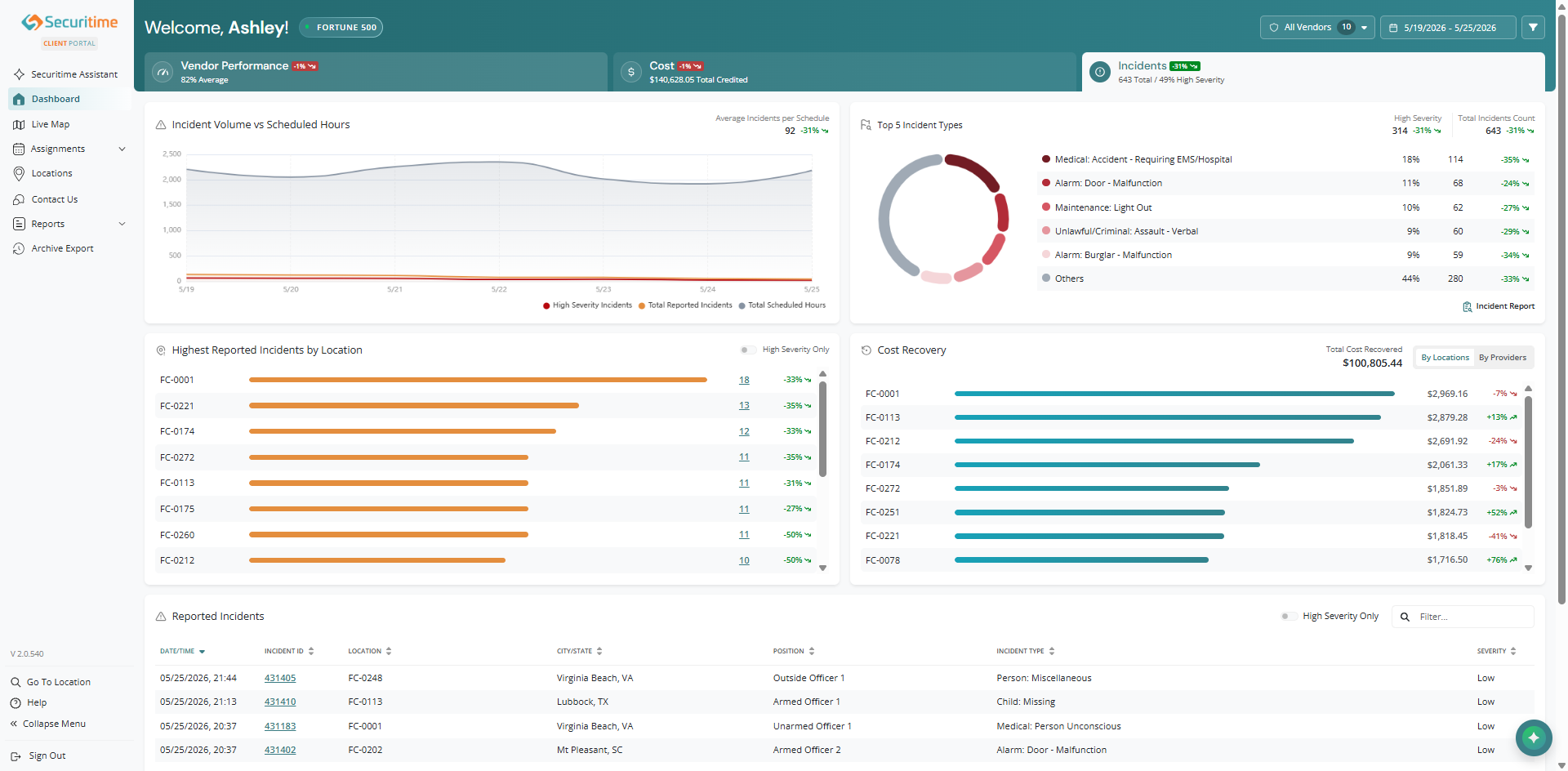
Incident Volume vs Scheduled Hours – Compare high severity incidents, total reported incidents, and scheduled hours over time.
Top 5 incident Types – Shows the five most common reported incident types.
Highest Reported Incidents by Location – Displays locations with the highest number of reported incidents.
Cost Recovery – Displays the total dollar amount recovered by location or provider.
Reported Incidents – Displays the most recent incidents within the selected date range. Note: Data is at least 24 hours old.
Live Map
The Securitime Live Map Dashboard provides near real-time visibility across all of your sites, so you always know the status of your security coverage. By clicking on the three dot option at the top right of the locations menu you can sort by location name, location status, and incident count. Locations are color-coded for quick recognition.
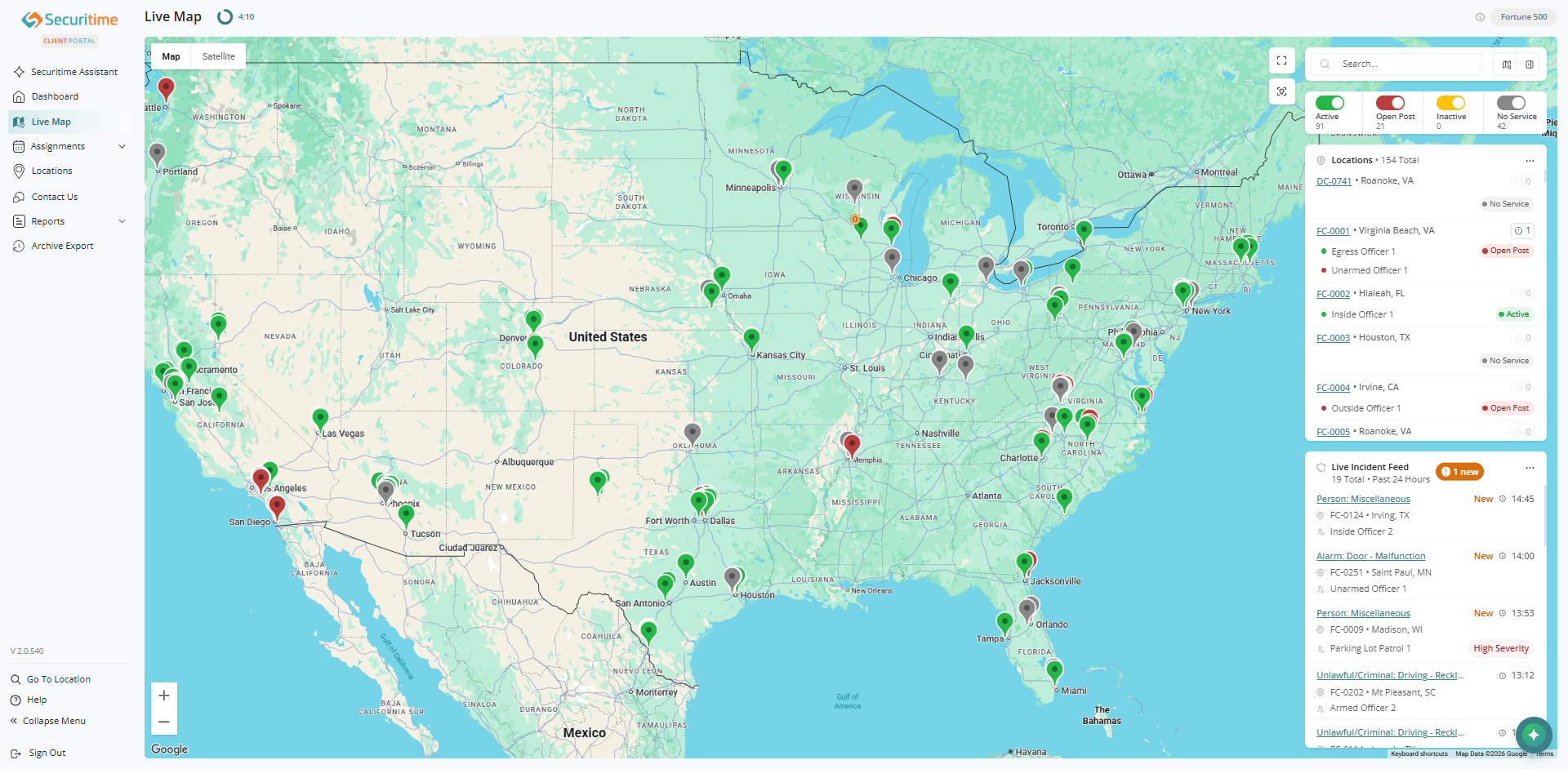
- Active: Toggle for all active posts that currently have guards.
- Open Post: Toggle for all open posts.
- Inactive: Toggle for posts that are serviced but are currently inactive
- No Service: Toggle for posts that do not have active schedules.
The incident feed offers a list incidents reported in the past 24 hours. By clicking on the three dot option at the top right of incident feed menu, you can sort by incident type, location name, and occurred time. Click on an incident to view more information.
Locations
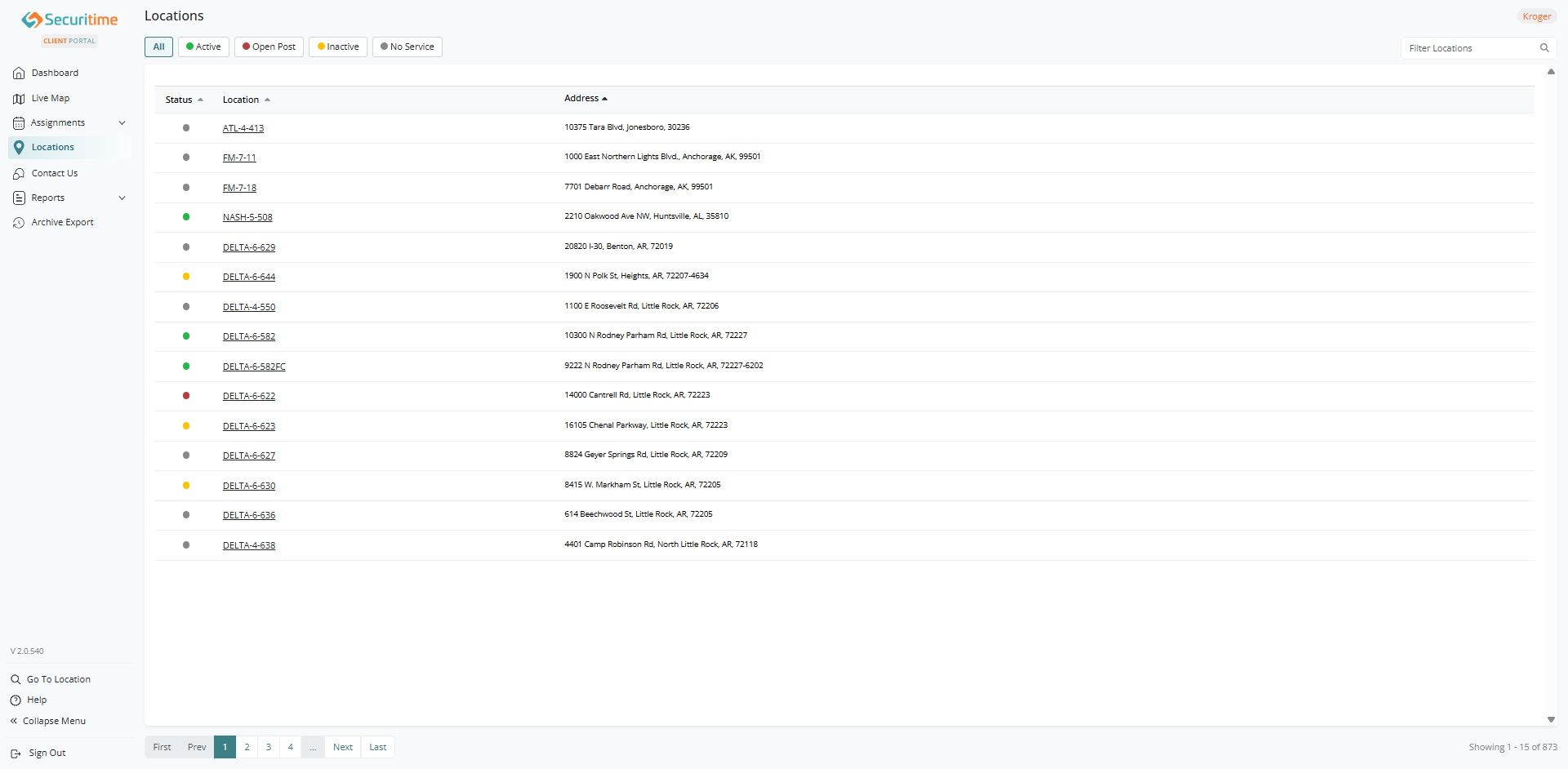
Locations view provides a snapshot of every locations status. This view makes it easy to see multiple properties at once. Select an option at the top to filter the status including Active, Open Post, Inactive, and No Service. Enter the store number or address in the search barn at the top right to find specific locations. Click on the location for more details and location reports.
Reports Menu
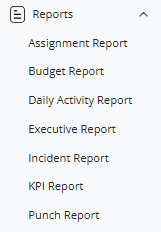
Reports give clients the tools to export and analyze security data. Options include assignment activity, budget comparisons, incident details, KPIs and officer punch reports. These reports allow clients to better manage costs, evaluate vendor performance and document compliance efforts. With flexible export options, clients can access both current and historical data for deeper analysis.
- Assignment Report: Detailed history of all assignments for auditing and tracking
- Budget Report: Compare projected vs. actual hours and spend for cost management
- Daily Activity Report: Detailed record of the guards shift including schedule, tours, incidents reported, and a report you can view or download
- Incident Report: Full details on reported incidents, including type, severity and outcomes
- KPI Report: Key performance indicators across providers and locations
- Punch Report: Validate officer timekeeping through clock-in/clock-out tracking
Was this article helpful?
That’s Great!
Thank you for your feedback
Sorry! We couldn't be helpful
Thank you for your feedback
Feedback sent
We appreciate your effort and will try to fix the article