Viewing Assignment Status
To view assignment statuses, log in to Client Portal and navigate to the Assignments Status page, click the drop-down arrow next to the calendar icon labeled Assignments on the left-hand navigation menu.
Filter Assignments
A list of assignments will be displayed along with filtering options at the top of the screen.

Use the available filters to refine your search:
- Location(s)
- Security Provider(s)
- Position(s)
- Status
- State
- City
To select all options within a Location, Security Provider, or Position category, toggle the switch next to the search field.
After applying the desired filters, click the Magnifying Glass icon to display matching assignments.
Assignment Details
The results display assignment information, including:
- Location Name
- Requested By
- Reason
- Vendor Name
- Position
- Start Date
- Revised
- End Date
- Total Hours
- Assignment Type
- Assignment Status
Assignment Status Indicators
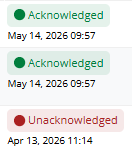
Assignment statuses are color-coded for quick identification:
- Red – Assignment is Unacknowledged
- Green – Assignment has been Acknowledged
Was this article helpful?
That’s Great!
Thank you for your feedback
Sorry! We couldn't be helpful
Thank you for your feedback
Feedback sent
We appreciate your effort and will try to fix the article