Overview
The Assignments page provides a centralized view of all assignments within the Client Portal. Users can quickly review assignment details, monitor current statuses, and filter results to locate specific assignments.
Viewing Assignments
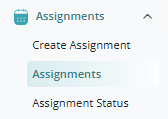
To view assignments, log in to Client Portal click the drop-down arrow next to the calendar icon labeled Assignments on the left-hand navigation menu.
Filter Assignments
A list of assignments will be displayed along with filtering options at the top of the screen.

Use the available filters to refine your search:
- Location(s)
- Security Provider(s)
- Position(s)
- Status
- State
- City
To select all options within a Location, Security Provider, or Position category, toggle the switch next to the search field.
After applying the desired filters, click the Magnifying Glass icon to display matching assignments.
Assignment Details
The results display assignment information, including:
- Location Name
- Address
- Vendor Name
- Position
- Original Start
- Revised Start
- End
- Total Hours
- Notes
- Status
Click drop down arrow to view assignment details and to update the assignment.

Make changes to the Vendor Rate by clicking the Pencil Icon next to the text box. Choose the effective date by clicking on the calendar icon. If the schedule is no longer Ongoing, click the check box and choose the termination date with the calendar icon.
Update the schedule here by selecting the plus or minus options under the days of the week and entering the work hours in the number text box. You can add rotating weeks by clicking the plus icon under "Week" and entering the schedule in the new week. When finished, click the green update option.
To view or add a note to an assignment, select the envelope icon. All changes will be noted here.
Was this article helpful?
That’s Great!
Thank you for your feedback
Sorry! We couldn't be helpful
Thank you for your feedback
Feedback sent
We appreciate your effort and will try to fix the article