Accessing the Incident Report
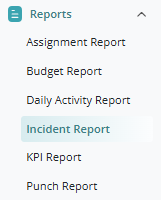
To access the Incident Report page, log in to the Client Portal and navigate to the Reports menu on the left-hand navigation panel. Click the drop-down arrow next to Reports and select Incident Report.
Filters
Use the available filters to customize the report results:
- Start date
- Report Type
- Severity Level
- Location(s)

To select all locations, toggle the switch next to the location search field.
After selecting the desired filters, click the Magnifying Glass icon to generate the report.
Alternatively, click the Download button to export the report.

Report Types
The Incident Report page offers several report types:
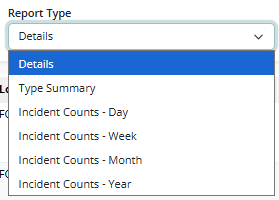
- Details
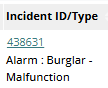
- Displays detailed information for individual incident reports.
- Click incident ID number to view incident details.
- Type Summary
- Provides incident type and the number of incidents reported for each type.
- Incident Counts
- Displays incident totals grouped by the selected reporting period, including Day, Week, Month, Year. These reports include information such as:
- Vendor
- Response
- Location
- Position
- Division
- Region
- District
- Reporting Period
- Total Incident Count
- Displays incident totals grouped by the selected reporting period, including Day, Week, Month, Year. These reports include information such as:
Was this article helpful?
That’s Great!
Thank you for your feedback
Sorry! We couldn't be helpful
Thank you for your feedback
Feedback sent
We appreciate your effort and will try to fix the article