
Overview
The Incident Report page allows vendors to review reported incidents across their locations. Users can filter incident data by date, client, location, position, and severity, view detailed incident information, and download incident report data.
Accessing Punch Report
Log in to the Vendor Portal and select Incident Report from the left-hand navigation panel under Performance.
Filters
Use the available filters to customize the incident report results:
- Start Date
- End Date
- Client(s)
- Location(s)
- Position(s)
- Severity
To select all available filter options, toggle the switch beside the search box.
After selecting the appropriate filters:
- Click the Magnifying Glass icon to display the report.
- Click the Download icon to export the incident report.
Additional filtering options include:
- Past Day – Displays incidents reported during the past 24 hours.
- Past Week – Displays incidents reported during the past 7 days.
- Past Month – Displays incidents reported during the past 30 days.
- High Severity Only – Toggle the switch to display only high-severity incidents.
- Filter Search – Enter keywords or values such as a store number, date, time, or other identifying information to further refine the results.
Incident Report Results
The Incident Report displays incidents matching the selected filter criteria.
The report includes the following columns:
- Occurred Date/Time
- Incident ID/Type
- Client
- Position
- Location
- District
- Division
- Region
- City/State
- Severity
- Cost Recovery
Select the sorting arrows beside any column heading to sort or further organize the report results.
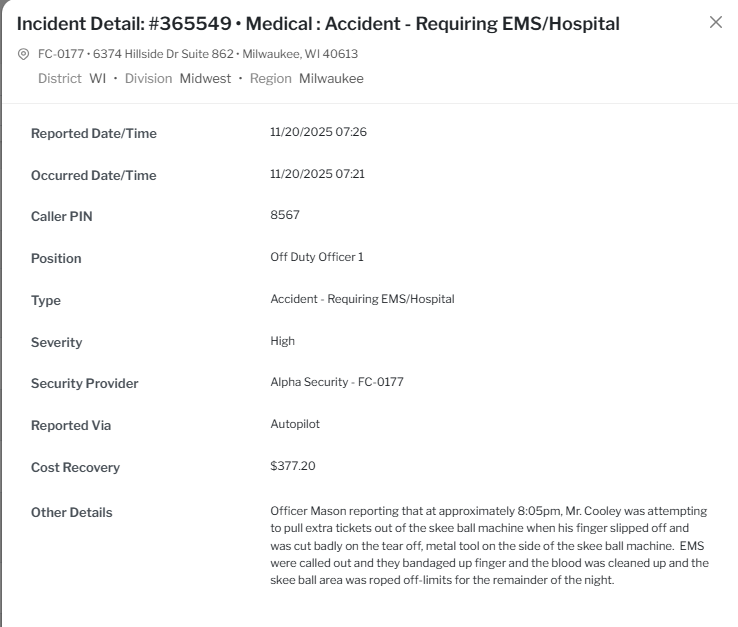
Incident Details
Select an incident from the report to open the Incident Details sidebar.
The sidebar displays detailed information for the selected incident, including:
- Store number and address
- Reported Date/Time
- Occurred Date/Time
- Caller PIN
- Position
- Type
- Severity
- Reported Via
- Cost Recovery
- Other Details (Written Report)
Was this article helpful?
That’s Great!
Thank you for your feedback
Sorry! We couldn't be helpful
Thank you for your feedback
Feedback sent
We appreciate your effort and will try to fix the article